
AI Burning Bridges Photo to Video: Choosing Your Portrait
How to choose one photo for an AI Burning Bridges party video, check the reference, and review face details before sharing the result.
The photo is the part you control
An AI Burning Bridges photo-to-video workflow combines your portrait with a fixed party scene. You choose who becomes the main character; the reference supplies the room, camera movement, and gestures. This makes selecting a clear portrait more useful than searching for an elaborate scene prompt.
The current generator creates a 15-second, vertical 9:16 video at your choice of 720p or 1080p. It preserves source audio, and a generation requires 2,400 credits. Check pricing and the amount shown in the generator before confirming a job.
Look for a face that is easy to see
Start with a photo that looks clear at an ordinary viewing size. Both eyes, the nose, and the outline of the face should be visible. Even lighting helps distinguish those features. A front-facing, shoulders-up portrait is a practical choice because the face occupies a meaningful part of the image.
Avoid solving a poor photo by adding a heavy filter. A filter can remove detail or change the features you want the video to preserve. If the face is soft, shadowed, or partly hidden, selecting another original photo is usually the clearer decision.
Use one consenting adult. A group photo leaves several possible subjects, while sunglasses, masks, or hair across the face hide information. Get permission before uploading another person's likeness, and do not present an AI clip as real footage of them.
Match expectations to the reference
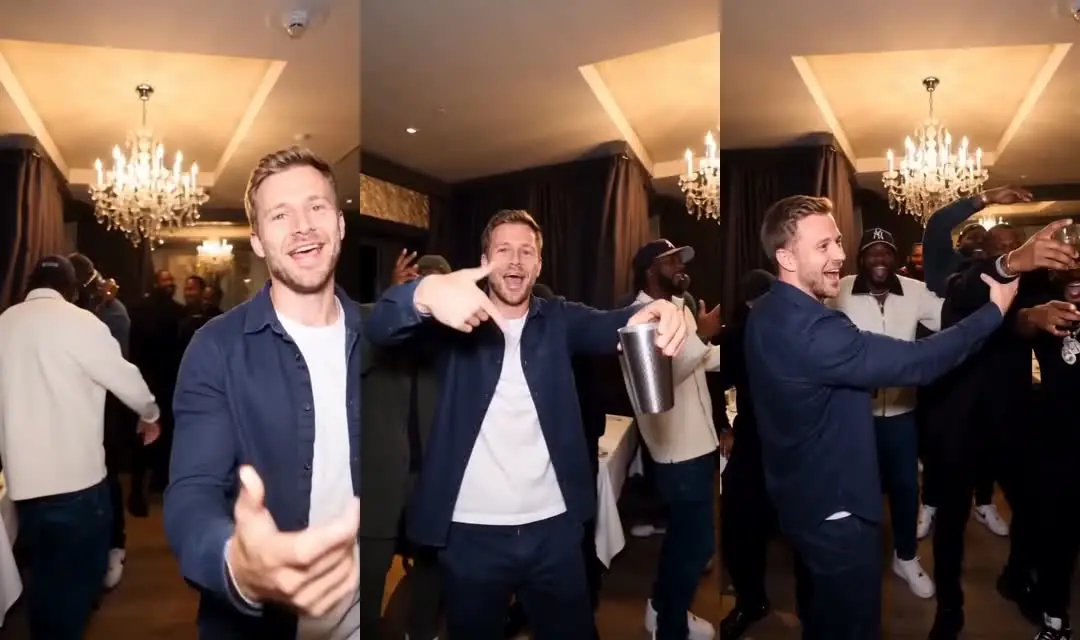
Watch the Burning Bridges reference demo before you buy credits. It explains the scene: a cup, hand gestures near the camera, a turn, and a crowd. It is not a customer output and does not show how your specific face will look.
You do not need a photo of yourself in a party room. The portrait supplies the person, while the reference supplies the setting. Clothes or hair visible in the portrait may inform the generated result, but AI can change details, particularly when the person moves or is partly obscured.
Review motion, not only the thumbnail
When the task finishes, play the entire clip. Pause where the person turns sideways or raises a hand. Check facial continuity, fingers, the cup, and the edges of clothing. Look at the background too: an AI-generated crowd can contain changes that a thumbnail does not reveal.
If you intend to post with text over the video, consider whether captions or platform controls will cover the face. Keep the caption truthful and use the destination platform's AI disclosure tools where required. The step-by-step guide covers generation, task status, and download.
Keep sound and rights separate
The generated clip includes source audio. Review it before sharing and follow your chosen platform’s music permissions. Buying generation credits does not grant rights to a song, somebody else's photo, or third-party footage.
To start, open the AI Burning Bridges generator, add one clear portrait, and review the photo and credit requirement. For more context on the fixed party format, read the AI Burning Bridges trend guide.