
AI Burning Bridges TikTok Video: From Portrait to Vertical Clip
Prepare an AI Burning Bridges video for TikTok, Reels, or Shorts with a clear portrait, vertical output with source audio, thoughtful captions, and an AI disclosure.
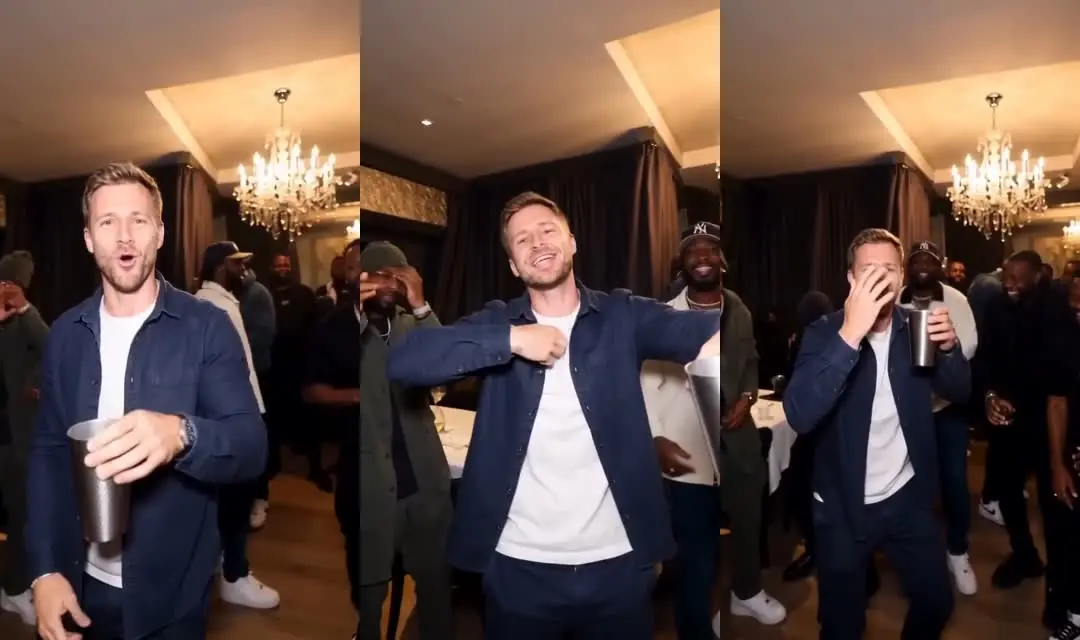
Create the clip before planning the post
An AI Burning Bridges TikTok video starts with the visual moment: one person placed into a warm party scene with a cup, close camera gestures, and friends around them. This generator turns one portrait into that format without asking you to film the choreography or write a scene prompt.
The output is intended to be 15 seconds, vertical 9:16, with source audio and a choice of 720p or 1080p. A job costs 2,400 credits. Review pricing and the generator's credit requirement before confirming. A vertical format fits a short-video workflow, but it does not guarantee reach, engagement, or compatibility with every platform feature.
Choose your portrait and check the scene
Use one front-facing, well-lit photo of yourself or a consenting adult. Keep the face unobstructed and avoid a group photo. A portrait with clear features gives a more understandable reference than a heavily filtered image or a small face in a wide landscape.
Watch the AI Burning Bridges reference demo before generation. The demo explains the movement and setting; it is labeled as a reference rather than a customer's result. You can then decide whether this particular scene suits the post you have in mind.
For the upload, generation status, and download sequence, follow how to make an AI Burning Bridges video. Keep the task ID if you need help with a processing problem.
Review the whole video
Do not approve a post from its cover image alone. Watch the moments when hands overlap the face, the cup moves, or the person turns toward the crowd. AI can change facial features, hair, clothing, fingers, and background details during motion.
Think about where captions will sit. A large block of text may cover the facial expressions or the cup gesture that make the scene recognizable. Preview the composition inside the destination app because controls and interface elements can overlap the edges of a vertical clip.
Add sound separately
Your generated clip includes source audio. If you replace or add sound, use a platform or another source only when you have the necessary permission. Availability of a track, permitted uses, and account restrictions can change, so check the app's current options when you post.
The generator does not include or license the original music. A familiar song title in a caption is not a substitute for permission to use the recording. If sound is unavailable for your intended account or use, choose an option you can use lawfully.
Make the context clear
Describe the result as an AI-created party clip. Avoid captions suggesting that it proves someone attended an event or performed the actions in real life. Follow the platform's current requirements for synthetic-content labels and get the person's consent before sharing their likeness.
You can use the same review process for Instagram Reels or YouTube Shorts: check framing, keep text readable, confirm sound rights, and disclose AI where required. Read the trend guide for more context, or open the generator when your portrait is ready.